
Understand what happens at checkout.
ShopZend Checkout Monitor brings checkout extension errors, messages shown to buyers, and checkout timelines into your Shopify admin.
View on Shopify App Store
A free plan is available. See the App Store listing for current plans, allowances, and usage charges.
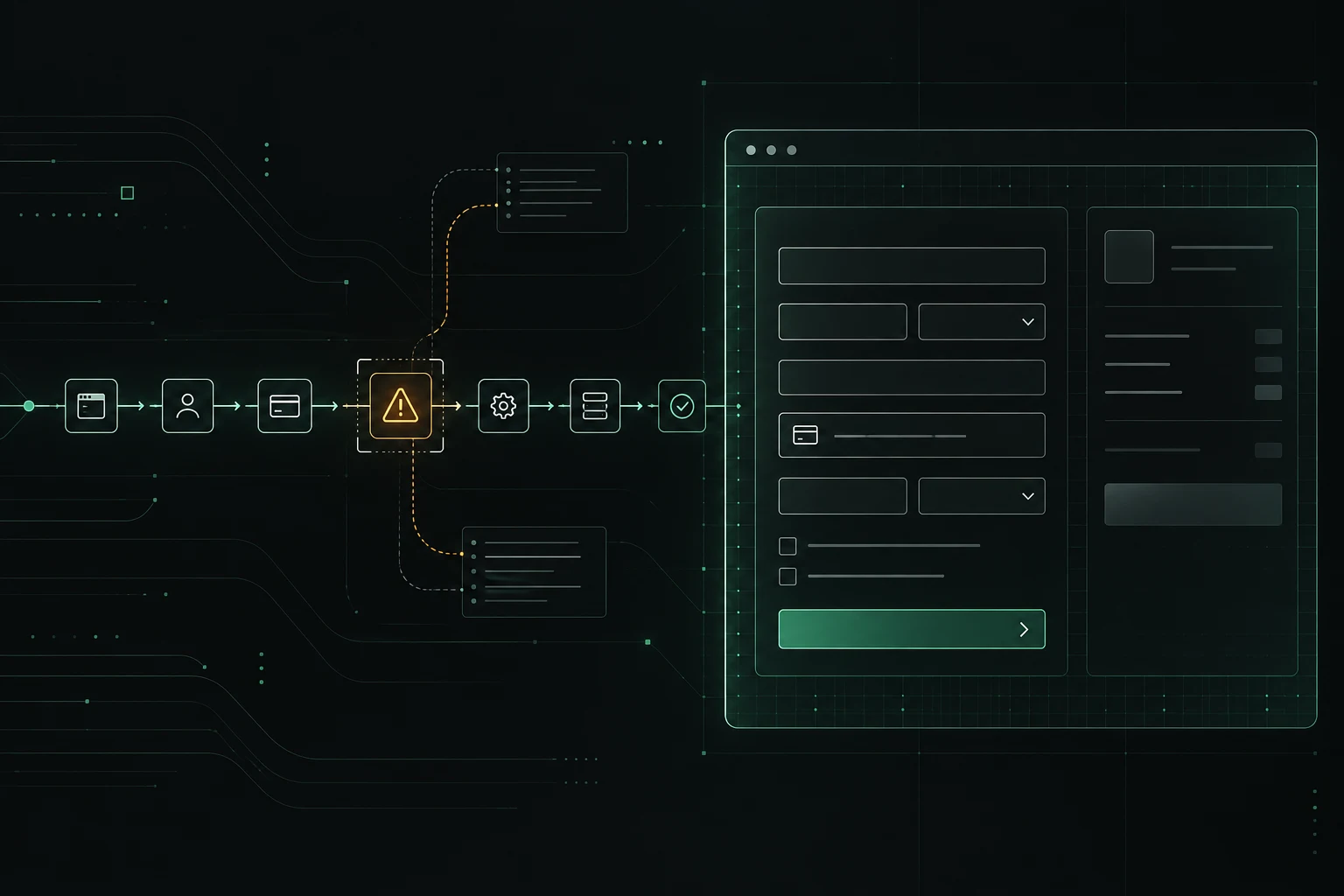
Start with the issue. Follow the checkout.
Use the context around an error to decide what to investigate next.
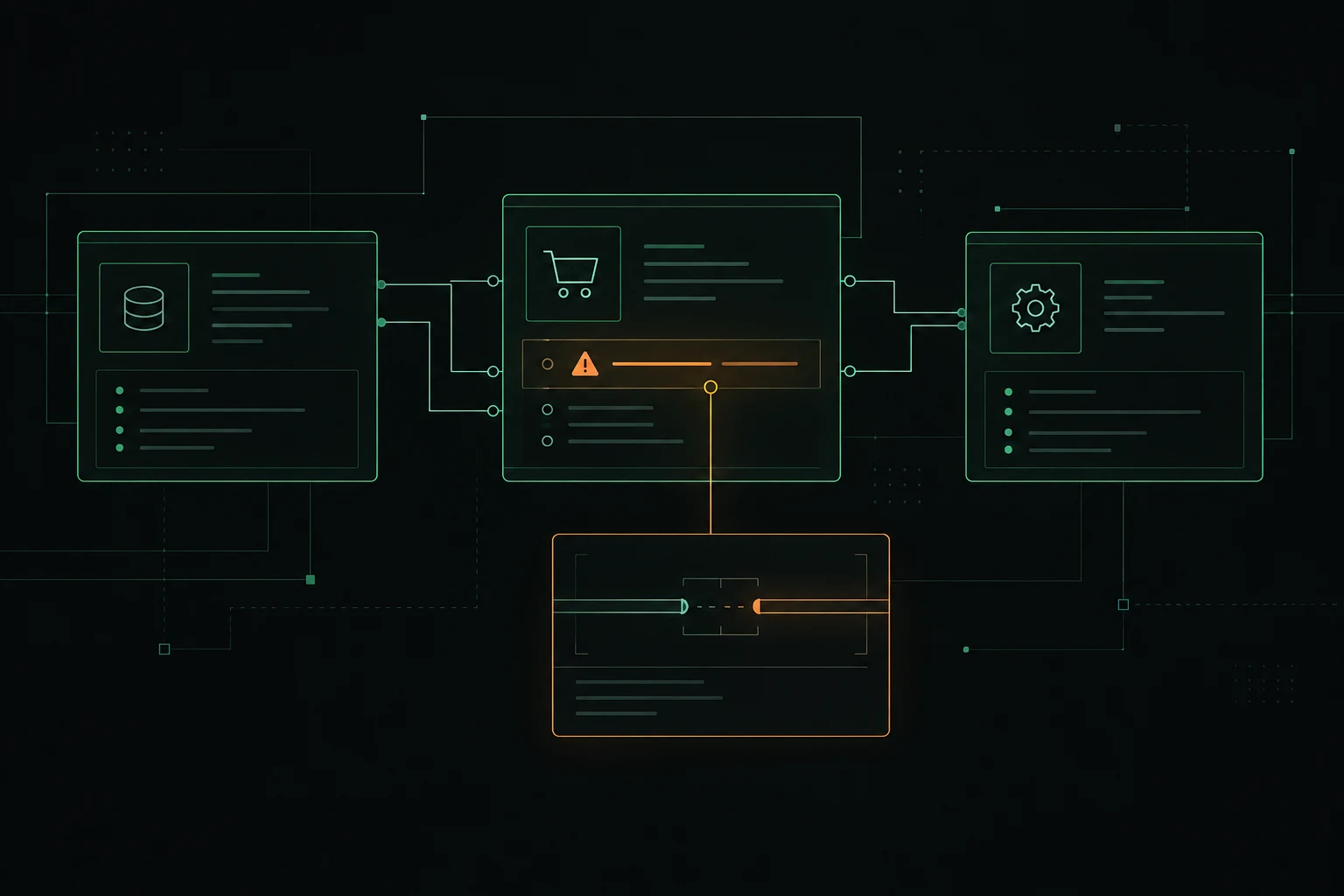
- Find extension errorsReview errors grouped by app and extension, with versions, messages, and affected checkouts.
- Understand buyer-facing messagesSeparate messages that stop orders, rejected discount codes, and fields buyers correct.
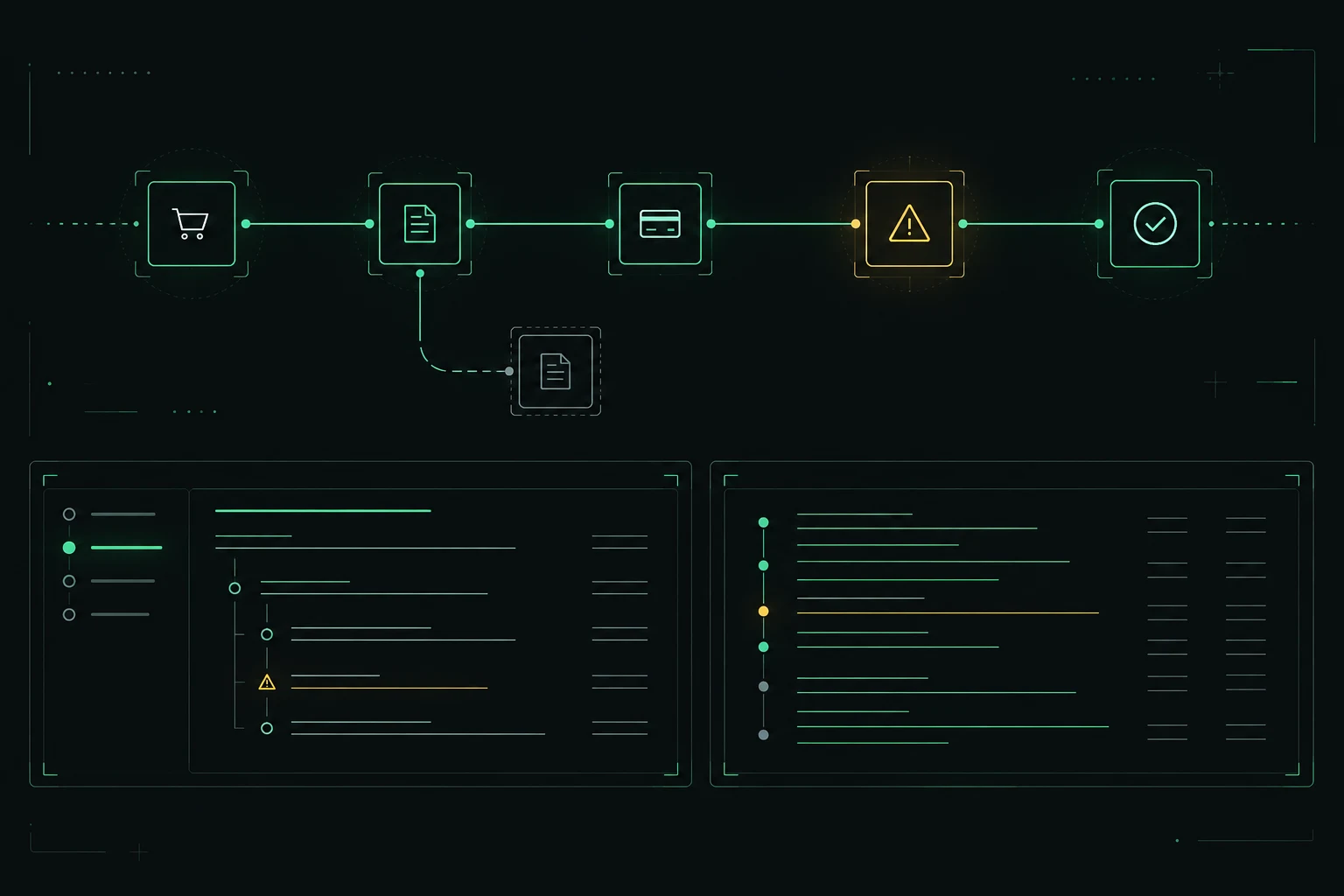
- Follow each checkoutInspect the sequence of events from the start of checkout to completion or drop-off.
- Prioritize your investigationCompare affected checkouts and uncompleted order value. Comparisons with the store average are estimates, not proof of lost sales.
Install. Open. Investigate.
Install from Shopify, open the app in your admin, and review incoming events. Pixel setup is automatic; event collection follows the store’s customer privacy settings.
Reports depend on the events Shopify makes available and may be incomplete. The app reports issues; it does not change your checkout or other apps.